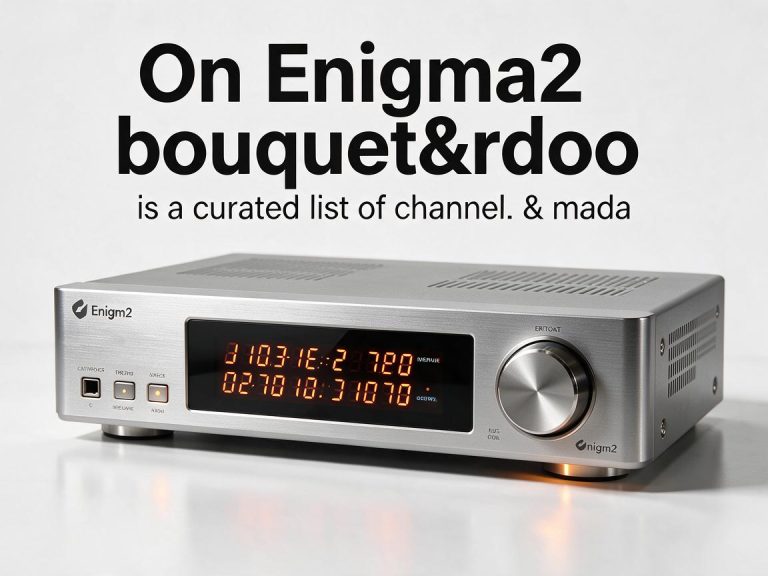
Setting Up Media Playback on Your Satellite Receiver
Your Receiver Is More Than a TV Box
Most modern satellite receivers have a USB port or internal storage that can play media files directly. Once configured, you can watch recorded TV, movies and family videos without switching to a separate streaming box. Setting it up takes only a few minutes.


Supported Formats
Entry-level receivers usually play MPEG-2 and H.264 MP4 files from a FAT32 or NTFS USB stick. Mid-range and Enigma2 boxes add H.265/HEVC support, MKV containers and network streaming over SMB/NFS. Before copying a drive full of files, check the manual — trying to play an unsupported format will just give an error.
Using a USB Drive
Plug the USB drive into the receiver, then open the media player app from the menu. The receiver should detect the drive and list folders. Navigate to the file and press OK. For recorded satellite TV, set the receiver’s recording path to the same USB drive in the storage settings.
Recording Timeshifting
With a USB hard drive attached, most receivers support timeshifting — pausing live TV. Press pause, and the receiver buffers the programme to disk. Press play to resume. For scheduled recordings, set up a timer from the EPG. Use a powered external drive if the receiver’s USB port cannot supply enough current for a 2.5-inch HDD.
Network Media (Enigma2)
On Enigma2 boxes, you can mount a Windows or NAS share via SMB and stream files over the home network. This avoids filling up USB sticks and lets the receiver play content stored on your computer. Configure the mount in the network settings, then browse it from the media player.
Media playback is a free bonus feature — but a reliable USB 3.0 drive makes the difference between a smooth experience and stuttering recordings. Buy a decent drive and format it through the receiver, not on your PC.